
Hardware Boot Selector
Created: Jul 07, 2025
Last modified: Oct 09, 2026
If you have more than one operating system on your computer, say Ubuntu on one SSD and Windows on another, you know the routine: turn the PC on, wait for the GRUB menu, arrow down, Enter. Every. Single. Time. And if you look away for a few seconds, it boots the wrong one.
This project replaces that with a physical switch on your desk. Flip it to the system you want before turning the computer on, and GRUB picks it on its own. No keyboard involved. The idea comes from the Hackster.io project Hardware Boot Select Switch Using Pico.
# How does a switch talk to GRUB?
GRUB can't read a button, but it can read files from a USB drive. So the trick is to make a
Raspberry Pi Pico pretend to be a tiny USB stick with a single file on it, switch.cfg.
Here's the clever part: that file doesn't really exist. Every time GRUB asks for its contents, the Pico checks the switch
right then and makes up the answer on the spot: set os_hw_switch=0 or set os_hw_switch=1.
GRUB reads that line as a normal command, and a few lines of config turn the number into the menu entry to boot.
Try it below: move the switch and watch what GRUB "sees" and which entry ends up selected.
set os_hw_switch=0Position 0 boots the first entry, Ubuntu.
# What you'll need
A Raspberry Pi Pico (RP2040). I recommend the WaveShare RP2040-Zero: it's tiny and fits anywhere.
A selector switch with as many positions as systems you want to pick from. A simple 2-position one is enough for two systems; for more, I used a 10-position binary selector (MCS-RM3HAF-10R).
# Wiring
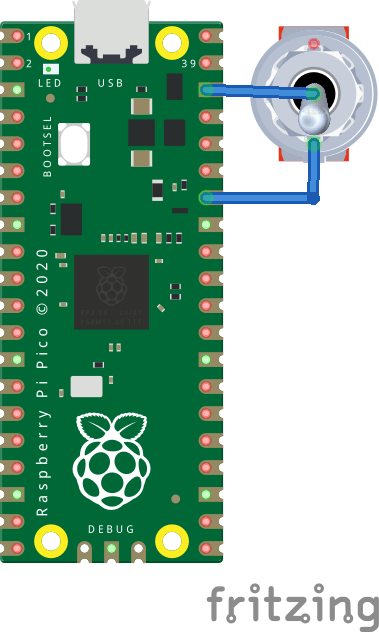
For two systems it couldn't be simpler: the switch goes between GPIO28 and GND. When it's closed, the pin sits at 0 V and reads 0; when it's open, the Pico's internal pull-up resistor lifts the pin and it reads 1. No external resistors needed.
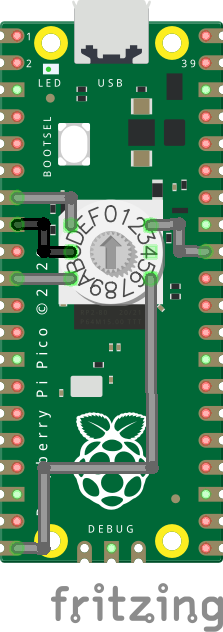
For more systems, a binary selector does the heavy lifting: each position closes a different combination of contacts, and the Pico reads them as the bits of a number.
# Building the firmware
1. Install CMake (3.13 or newer) and the ARM cross compiler:
sudo apt install cmake gcc-arm-none-eabi libnewlib-arm-none-eabi libstdc++-arm-none-eabi-newlib2. Download the Pico SDK:
cd
git clone https://github.com/raspberrypi/pico-sdk.git
cd pico-sdk
git submodule update --init
3. Tell the build where the SDK lives with PICO_SDK_PATH:
echo 'export PICO_SDK_PATH=~/pico-sdk' >> ~/.bashrc
source ~/.bashrc
4. Clone this project:
cd
git clone https://github.com/carlosbravo1408/HardwareBootSelector.git
cd HardwareBootSelector
5. Pick the branch that matches your switch. For two systems, stay on master. For more, switch to MCS-RM3HAF-10R, the 10-position version:
git checkout MCS-RM3HAF-10R6. Build it:
mkdir build
cd build
cmake ..
make
7. Hold the Pico's BOOT button while plugging it in, and it shows up as a USB drive. Copy
pico_msd.uf2 onto it, and that's it: the Pico restarts as your boot selector.
# Teaching GRUB to listen
Now GRUB needs to know about the switch. Custom entries go in /etc/grub.d/40_custom:
sudo nano /etc/grub.d/40_customPaste this into the file:
#!/bin/sh
exec tail -n +3 $0
# This file provides an easy way to add custom menu entries.
search --no-floppy --fs-uuid --set hdswitch 0000-1234
if [ "${hdswitch}" ] ; then
  source ($hdswitch)/switch.cfg

  if [ "${os_hw_switch}" == 0 ] ; then
    set default="0"
  elif [ "${os_hw_switch}" == 1 ] ; then
    set default="2"
  else
    set default="${GRUB_DEFAULT}"
  fi
else
  set default="${GRUB_DEFAULT}"
fi
Line by line, it's less scary than it looks:
exec tail -n +3 $0: this file is really a script that generates GRUB's config. This line just copies
everything from line 3 onwards as is.
search ... 0000-1234: looks for a disk with that ID, which is the one the Pico reports, and stores it in hdswitch.
source ($hdswitch)/switch.cfg: runs the line inside the file, which sets os_hw_switch.
The if / elif block translates the switch position into a menu entry. Remember that entries count from 0,
so check the order of your own menu and adjust the numbers. If you have more systems, add one elif per position.
If the Pico isn't plugged in, search finds nothing and GRUB falls back to its default entry.
Save, and regenerate GRUB's config so it picks up the changes:
sudo update-grub# Windows doesn't show up in the menu?
Since Ubuntu 22.04, GRUB no longer looks for other operating systems by default: the os-prober option is turned off.
To turn it back on, open /etc/default/grub:
sudoedit /etc/default/grub
Look for the line #GRUB_DISABLE_OS_PROBER and change it to GRUB_DISABLE_OS_PROBER="false"
(if it's not there, just add it at the end):
# If you change this file, run 'update-grub' afterwards to update
# /boot/grub/grub.cfg.
# For full documentation of the options in this file, see:
#   info -f grub -n 'Simple configuration'
...
# Uncomment to get a beep at grub start
#GRUB_INIT_TUNE="480 440 1"
GRUB_DISABLE_OS_PROBER="false"
Then run update-grub one more time:
sudo update-grub# Wrapping up
What I like most about this project is the trick at its core: when a system only knows how to read files, you can still talk to it by building something that looks like a file. A few lines of firmware and a few lines of GRUB config, and now picking an operating system is as easy as flipping a switch.